
I ran into this warning the other day when I tried adding an animation clip to an object “Animation Component must be marked as legacy”, and there was no obvious way to find and fix the legacy problem… After searching a little bit on the internet, I found this solution to fix the warning:
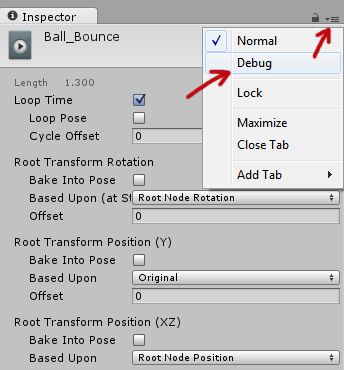
Select the animation clip in your Project > Go to the Inspector tab and clip on the “hamburger” button > Then select “Debug”.
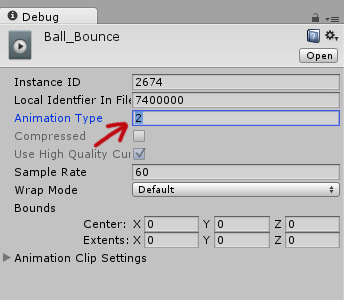
The inspector options will change into debugging mode and there set the “Animation Type” from 2 to 1. Set the inspector mode back to “Normal” through the hamburger button and it’s fixed! No more legacy warnings!
Related Posts
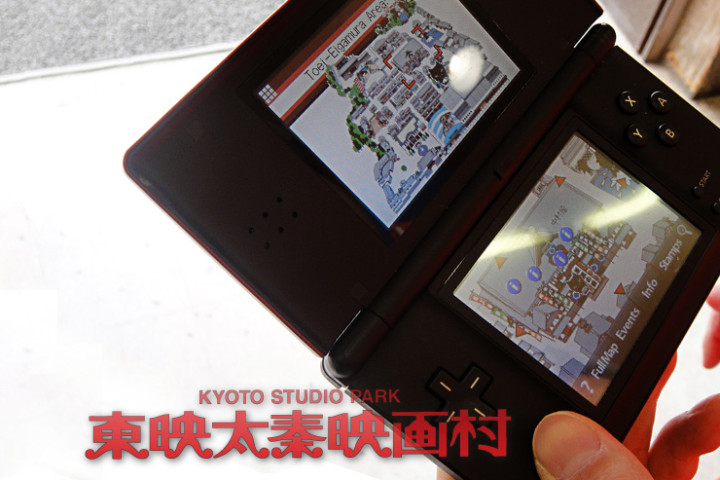
Interactive Guide System on the Nintendo DS
An interactive guide system for the movie theme park Eigamura

Pittsburgh from Mount Washington Panorama
Pittsburgh from Mount Washington panorama picture
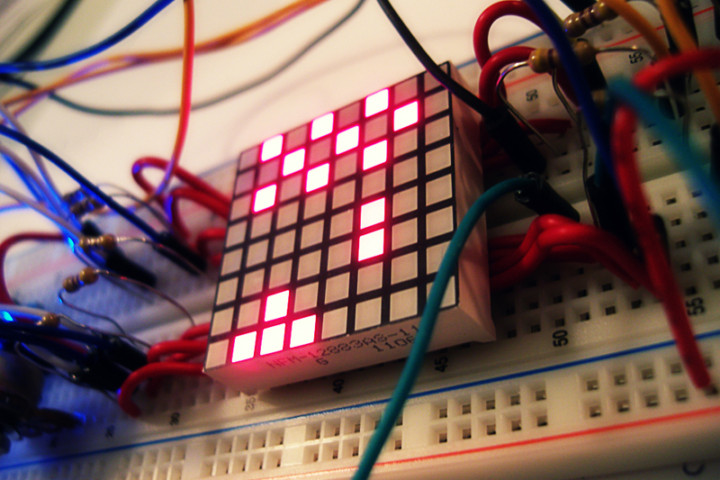
Space Invaders 8×8 LED Matrix
Finally uploaded the video of my Space Invaders game on an 8x8 LED Matrix using an Arduino Nano.
[How-to-Fix] Catalyst Control Center & Native Resolution
Native resolution of wide screen not showing up after updating drivers.
I also have this problem. But when my clip is Legacy, I can’t preview it, and I can’t see it in Animation Windows. Help me, please!
Did you select the GameObject where you had animation attached to? You can’t preview an animation with the Animation Window unless you have it selected.
thanks man you save my life