[How] Flash: Seek() & PlayHeadTime() Accuracy

Using seek() and PlayHeadTime() with FLVPlayback component of video files in Flash can be quite inaccurate. We had the same problem when we were building a prototype for our project, which involved switching and syncing of videos using specific timing. PlayHeadTime gave a decimal value, but whenever we would do a seek() using the PlayHeadTime value on a video, the timing would be off by 0.5-1 second.
Apparently, the accuracy of the seek() function is dependent on the keyFrameInterval of the video and the FPS meaning Precision = keyFrameInterval / FPS.
So for example, if you have a keyFrameInterval = 30 (1st frame will be a keyframe, 30th frame will be a keyframe, 60th frame ... etc.) and FPS is set on 15, you'll only be able to seek in 2-seconds intervals of time (precision = 30 / 15).
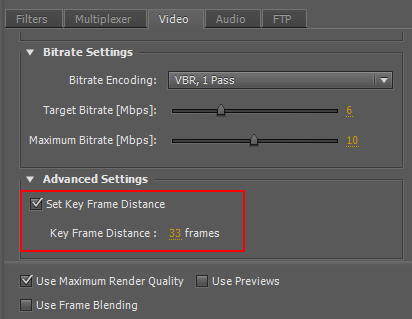
To make the seeking more accurate, set the key frame distance when exporting your video with Adobe Premiere. This option can be found in the "video" tab, "Advanced Settings", check "Set Key Frame Distance" and set the key frame distance lower. Export it and now your seek() accuracy would be more precise!

Premiere CS5 Blue Lines
 I rarely use Adobe Premiere. A week ago, I made some animation clips in Flash and wanted to stitch them together in Premiere. Editing the video went all well, but when I tried exporting the movie it created these blinking blue lines in my video :S
I tried exporting it as .mov, .wmv, H.264, .avi, etc. but nothing worked! :@
What did remove the blue lines was was exporting my video as MPEG-2. But then the interlacing was screwing up my video. Turning off the interlacing lowered the quality so much that it really looked like crap....
Finally, I figured out that the problem was the discrepancy of the FPS between my source videos and the exported video file. My Flash animations were in 30fps while the video exported in Premiere was 25fps.
I changed it in Flash, exported the final video with Premiere and there no more blue lines and the interlacing wasn't a problem :D :D The video is done and will be posted really soon!!
Another solution is to put a title over the flashing video and set the opacity to 0, it forces Premiere to re-render the area.
Hope this post will help and save someone some headaches :)